‏إظهار الرسائل ذات التسميات CWM Recovery. إظهار كافة الرسائل

الأحد، 21 فبراير 2016

How to root CM Flare S3 Octa Lollipop and install Custom Recovery

How to root CM Flare S3 Octa Lollipop and install Custom Recovery

After an official update in Cherry Mobile Flare S3 Octa Kitkat to Lollipop version. I decided to make an update on how to root and Install Custom recovery. Hence, you can't use your custom recovery in kitkat to new update of lollipop version. I have 3 methods to root but I will teach you the most easiest way.
Root Flare S3 Octa Lollipop  Picture


Requirements:


CM Flare S3 Octa


Warning: Rooting can void your warranty!
Do it at your own risk!
FIRST METHOD
I-ROOTING
                                                   
I'm going to teach you on how to root CM Flare S3 Octa using updated Kingroot which can root even Android 5.1 or Lollipop version. 

1. Download and Install KINGROOT4.8.0.APK
2. Open Kingroot and click Optimize Now
kingroot

3. Wait to finish and click continue.
4. You can uninstall now other apps like Purify.
5. Download Rootchecker in Playstore to verify.


II-Installing Custom Recovery
Requirements:
Rashr tools
CWM (rename to recovery.img)
TWRP (rename to recovery.img)
1. Download Rashr Tool
2. Boot into Recovery
3. Locate recovery.img then flash!
Enjoy!

If Root was removed once reboot. Try to  flash this SuperSU-Beta-2.52.zip.

Here's stock recovery if you want to go back in stock recovery.


Credits:http://androidcribs.com
Kingroot
Yuweng for TWRP


SECOND METHOD
Warning: Rooting can void your warranty! Do it at your own risk!

Requirements:
CM flare S4
PC
USB CABLE

Download all:


(run exe file to load needed drivers)


2. Vcom drivers: .. (install sa pc)


(extract the file then copy to desktop)


4. CWM (rename to recovery.img)
    TWRP (rename to recovery.img)
     copy this CWM/TWRP inside (minimal adb fastbool tool folder)
recovery copy


(copy this to your root directory of sdcard(sa labas lang ng sdcard wag sa mga folder ok)


Before you Proceed don't blame me for any damage that will happen to your device...Do it at your own risk!!!!!


Procedure:
1. first enable developer option go to setting click build number (tap 7 times) now go to developer option turn on usb debugging turn on oem unlocking
OEM UNLOCKING


2. Boot your device to Fastboot mode (hold power button and vol up) choose fastboot mode or boot into bootloader, then connect your phone to PC via USB cable. Open folder fastboot from minimal adb fastboot tool(run as administrator)
Click Run me.bat
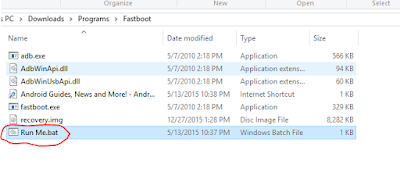
fastboot click run me.bat

3. Type this command:

"fastboot oem unlock" 


fastboot oem unlock

Then hit Enter

don't include (")  in adb ok! Just like in the image above.
4. Then ON your device follow the instructions (choose vol up to unlock/vol down if you dont want to continue unlocking)Then wait for minimal adb to successfully unlock your bootloader (it will erase all your files and restore device to factory state)remove your device then turn it on..(on screen it will show android erasing-- after that it will boot up wait 5 to 10 minutes)skip set up wizard(skip lang ng skip)then repeat step 1.then follow the next step below


Follow this guide to flash cwm recovery on your flare s4

Procedure: 
1. How to Use Minimal ADB and Fastboot Tool to Install Custom Recovery Boot your device to Fastboot mode(hold power button and vol up) choose fastboot mode)open minimal adb fastboot tool(run as admin).
 Follow step 2. above Click Run Me.bat

2. then type this command: 
"fastboot flash recovery recovery.img"


fastboot flash recovery

Then hit Enter
(again di kasama ung "" sa command hahaha)wait untill flashing finish it will take just a secs..

3. remove your device now force it to boot to recovery hold power/volume up (choose boot to recovery) then choose install files to sdcard (flash superSu) then Boom rooted kana!
always choose fix root access when rebooting... on cwm


الثلاثاء، 9 فبراير 2016

How to root SKK LYNX ELITE and install CWM Recovery

How to root SKK LYNX ELITE and install CWM Recovery

SKK LYNX ELITE Root


Requirements:


Skk Lynx Elite


This tutorial teach you on how to root Skk Lynx Elite using updated Kingroot which can root even Android 5.1 or Lollipop version.

1. Download and Install KINGROOT4.8.0.APK
2. Open Kingroot and click Optimize Now
kingroot

3. Wait to finish and click continue.
4. You can uninstall now other apps like Purify.
5. Download Rootchecker in Playstore to verify.


Installing Custom Recovery
Requirements:
Rashr tools
CWM (rename to recovery.img)

1. Download Rashr Tool
2. Boot into Recovery
3. Locate recovery.img the flash!
Enjoy!


Credits:
http://androidcribs.com
Kingroot
CWM


other not mention

السبت، 16 يناير 2016

How to Root Acer Liquid Z500 and install CWM recovery

How to Root Acer Liquid Z500 and install CWM recovery
Acer Liquid Rooting and Recovery


I- ROOTING
1. Download and extract Kingroot4.1.zip 
2. Open the app. Tap the Green Circle Button.
3. Wait until the progress finishes up to 100 %.
4. If rooting is successful, restart your phone.
5. Look for Kinguser app on your app drawer. To check if you are succesfully rooted, install Root Checker app.


II - INSTALLING CWM RECOVERY

Requirements:
Download all:
1.update.zip
4.rooted phone
========================================================================
Procedure:

Step1. download all required files and put it in your sd card.
Step2.download flashify then open if root permission is asked grant it.
Step3.choose recovery to flash and locate the recovery.img.
Step4.wait for the flashify to finish flashing it then reboot.
Step5.after booting into stock recovery , choose apply update from external storage and locate the update.zip .
Step6. you will boot into the CWM recovery and create a backup , and done xD
========================================================================

الخميس، 7 يناير 2016

How to root O+8.6 and install CWM recovery

How to root O+8.6 and install CWM recovery

O+8.6 Root and Recovery


O+ 8.6 specs:
4.5” LCD display @ 540 x 960 pixels
Mediatek MT6577 1GHz dual-core processor
PowerVR SGX 531
4GB internal memory
1GB RAM
Dual-SIM, dual-standby
WiFi
Bluetooth
5MP rear autofocus camera, LED flash, 720p HD
VGA front-facing camera
GPS w/ aGPS support
FM Radio tuner
Android 4.1 Jellybean
Li-Ion 1,500mAh battery


I- ROOTING
1. Download Kingroot (for rooting)
2. Open the app. Tap the Green Circle Button.
3. Wait until the progress finishes up to 100 %.
4. If rooting is successful, restart your phone.
5. Look for Kinguser app on your app drawer. To check if you are succesfully rooted, install Root Checker app.


II - INSTALLING CWM RECOVERY

Requirements:
Rooted
Download all:

========================================================================
Procedure:

Step1. download all required files and put it in your sd card.
Step2.download flashify then open if root permission is asked grant it.
Step3.choose recovery to flash and locate the recovery.img.
Step4.wait for the flashify to finish flashing it then reboot.
Step5.after booting into stock recovery , choose apply update from external storage and locate the update.zip .
Step6. you will boot into the CWM recovery and create a backup , and done xD
========================================================================

Credits:
Carliv
CWM
XDA

الثلاثاء، 5 يناير 2016

How to Root MyPhone My33 and Install CWM recovery

How to Root MyPhone My33 and Install CWM recovery

Finally we made Rooting Procedure and Flashing  CWM recovery for MYphone My33. In this tutorial I have 3 method for Rooting. It's up to you of what you prefer. Just try the first method if not work proceed the 2nd and 3rd method.
MyPhone My33 and Recovery


Warning! Rooting can void your warranty!. DO it at Your own risk!

FIRST METHOD
(HIGH RISK)
Rooting via Recovery Mode only
Pros: No need PC. Can root via  your mobile phone only!
Cons: This method is high risk and not fully tested

Requirements:
My33
Download:


Procedure:
1. Download  Android.com-root.zip and put in sdcard.
2. Go to recovery mode: (Reboot your phone and hold Power Vol up +Vol down + Power)
Then Vol up once Recovery mode appear
3.Tap install via zip then locate  Android.com-root.zip in sdcard then Install.
4. Reboot.


SECOND METHOD
(MED RISK)
Rooting via Fastboot
Pros: Medium Risk only. 
Cons: Wrong command can't work unlocking.
           Can delete all your files. you need to back up first.

Download all:
(run exe file to load needed drivers)


2. Vcom drivers: .. (install sa pc)


(extract the file then copy to desktop)

4.CWM

(copy this to your root directory of sdcard(sa labas lang ng sdcard wag sa mga folder ok)

PROCEDURE:
1) Unlock bootloader:
1.1) Boot for first time your device. I recommend to NOT register/login/add Wifi/add accounts/etc., because the unlock process DELETES all your data in the device. So to go more fast, skip all, and go directly to SETTINGS. In section ABOUT DEVICE, enable the developer options with eight time picks over “Build number”. Then in SETTINGS/DEVELOPER OPTIONS, enable the option “OEM unlocking”. Then power off.
OEM UNLOCKING SCREENSHOT
1.2) Boot your device to Fastboot mode (hold power button and vol up) choose fastboot mode or boot into bootloader), then connect your phone to PC via USB cable. Open folder fastboot from minimal adb fastboot tool(run as administrator)
Click Run me.bat
fastboot click run me.bat

Execute in your computer the command “fastboot oem unlock”, say YES with “vol+” and “power” buttons. Then select reboot. This ERASES completely your device (factory restore), but the bootloader will be UNLOCKED! Two reboots needed.
fastboot oem unlock

2) Install custom Recovery:
2.1) Download CWM recovery
 copy this recovery.img inside (minimal adb fastboot tool folder)
recovery copy
2.2) Boot in the BOOTLOADER mode. Then execute command “fastboot flash recovery recovery.img”; 
fastboot flash recovery
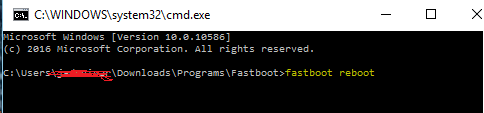
and then “fastboot reboot”.
fasboot reboot

3) Rooting:
3.1) Copy last beta of SuperSU v2.52 to your SD Card (file BETA-SuperSU-v2.52.zip).
Click Here
3.2) Boot in the CWM with “Vol+” and “Power” buttons.
Note: CWM not toucheable to navigate use Vol up and down button (down and up) and Power button (OK)
3.3) Install ZIP from external-sd card.
3.4) Reboot and don’t select “fix root”, only “Yes”.
3.5) After boot, start SuperSU and configure it. Root done!


THIRD METHOD

(LOW RISK)

Rooting via PC and Flash via SPFT
Pros: This tested 100% by our member in My33 Group
           Can't delete file.  you don't need to backup.
Cons: USE PC
           Wrong flashing can brick your phone!
           CWM is still no touchable. Use vol and power button to navigate.

Requirements:
PC
USB Cable


Download Links:
Mediatek VCOM Drivers:

SP Flash Tool:

My 33 CWM & Scatter File:
Click Here
UPADATED CWM: CWM-BETA4.IMG
UPDATED TWRP: TWRP-MY33-BETA-6.IMG

BETA-SuperSU-v2.52.zip:


 Instructions
1. Download all necessary files and Enable USB Debugging mode in your phone..
2. Install Drivers USB_VCOM_Driver.rar
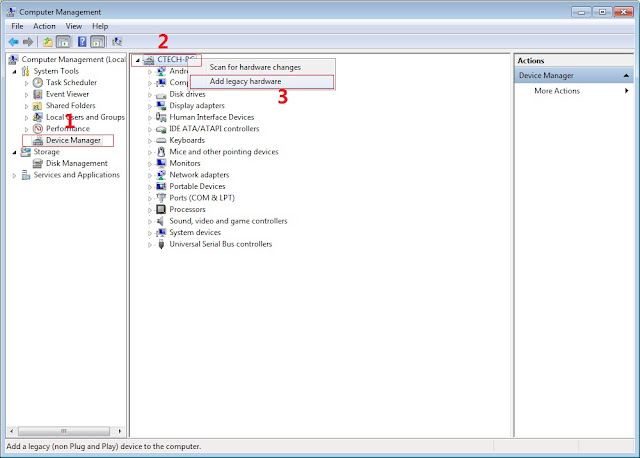
In Device Manager Right click on PC name(Right Side) and then click on Add legacy hardware as shown in image below.

Driver installation
Now in Add Hardware Wizard click on Next » Install the Hardware that i manually select from a list (Advanced) » Show All Devices » Next » Have a Disk, Now select the any inf file from where you extracted the downloaded VCOM driver package.

Mediatek Preloader

 Now Click on Next and select Install this driver software anyway and wait for finishing the process.

SPFT SCREENSHOT

    After installation is finished then Restart your computer, That's it.
3. Extract SPFlash tool and my33-cwm-recovery+scatter.zip
4. Copy the BETA-SuperSU-v2.52.zip to your phone.
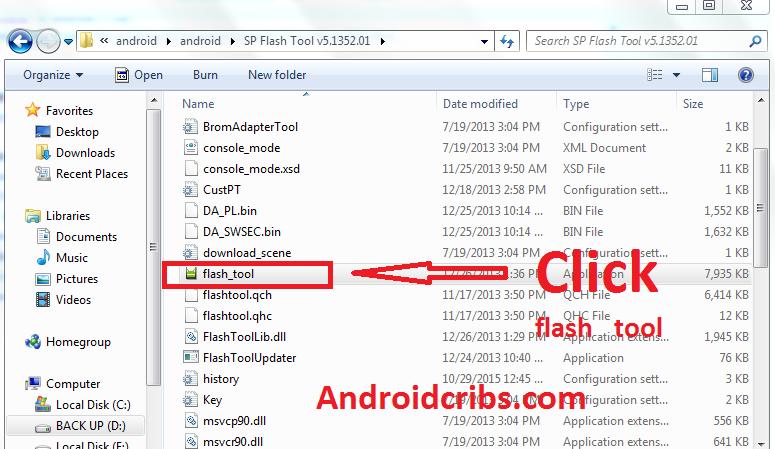
5. Open flash_tool.exe, click on the Download Tab
FLASH TOOL SCREENSHOT

6. Click Scatter-loading and browse for the scatter file(included in the My33 CWM RECOVERY+Scatter file) (MT6592_Android_scatter)
7. Make sure flashing mode is set to "Download Only" and check mark only on the Recovery.
MT6573 SPFT RUNNING

8. Click Download.
9. Turn off your phone, connect your phone to the PC and wait for the flashing to commence.
10. Green Circle image will show once flashing is completed.
SPFT SUCCESS

11. Important: Disconnect your phone from the computer, press and hold Vol Up + Power.
12. Boot menu will show, select Recovery.


From the custom recovery (CWM), it is recommended to backup your phone first, before rooting.


To root:
1. Reboot your  phone then press and hold Vol Up + Power On
 the CWM Recovery , click Install zip.
Install via zip
2. Choose zip from storage/sdcard1
install via zip


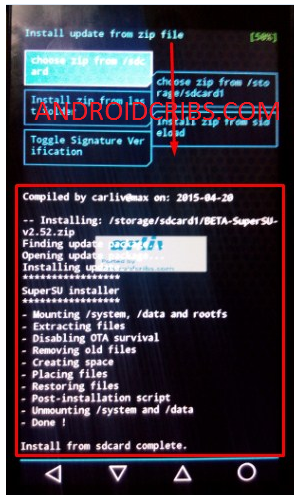
3. Select BETA-SuperSU-v2.52.zip.
superSu install
 4. Tap Yes Install BETA-SuperSU-v2.52.zip.
Install super su Screenshot 2

5. Flash it, no need to wipe cache. Wait to finish. Once completed then reboot!
Install super su Screenshot 3

4. Enjoy your rooted  MY33.

Then download Root checker in Playstore to verified.


My 33 Root Success


NOTE: After rooting.
Download and Install Root Explorer/ES File Explorer and install.


Go to root/system/ and rename recovery-from-boot.p to recovery-from-boot.p.bak. 


Disclaimer:
Please give proper credits in my blog and Do not reupload, Instead share this link! Thank You!

Credits:
Dess LAgnirac (tester 1)
Budz Navz (tester 2)
Rane Forteza (tester 3)
Sam toledanes for screeenshot in Cwm
My 33 Group
Carliv
XDA
Chainfire


الأحد، 3 يناير 2016

How to Root Cherry Mobile Flare J1 and Install CWM recovery

How to Root Cherry Mobile Flare J1 and Install CWM recovery

CM FLARE J1 SPECS

Cherry Mobile Flare J1 Specifications

5" FWVGA Display, 854x480, 196ppi
Android 5.1 Lollipop
1.3GHz Quad Core Processor
SC7731/SC8830 Spreadtrum Chipset
Mali-400MP GPU
4GB ROM
512MB RAM
2000mAh Non-removable Li-ion Battery
8MP Rear Camera with LED flash
2MP Front Camera
Expandable via MicroSD up to 32GB
Dual Regular SIM/Dual Standby
3G HSPA+, 2G EDGE and GPRS Networks
Wi-Fi and Wi-Fi Hotspot
Bluetooth 2.1


I- ROOTING
1. Download and extract Kingroot4.1.zip 
2. Open the app. Tap the Green Circle Button.
3. Wait until the progress finishes up to 100 %.
4. If rooting is successful, restart your phone.
5. Look for Kinguser app on your app drawer. To check if you are succesfully rooted, install Root Checker app.


II - INSTALLING CWM RECOVERY

Requirements:
Download all:
3.rooted phone
========================================================================
Procedure:

1. download all required files and put it in your sd card.
2. download flashify then open if root permission is asked grant it.
Flashify Screenshot 1

3. choose recovery to flash and locate the recovery.img.
FLASHIFY-CHOOSE-A-FILE
FLASHIFY-RECOVERY-IMAGE

4. wait for the flashify to finish flashing it then reboot.
FLASHIFY-REBOOT-NOW
5. You can backup your device now!.. Enjoy!
========================================================================

Note: This CWM works  in CM Flare J1 V4 only. To determine check your settings in about phone. Like in image shown below..
FLARE-J1-V4

Credits:
Rafael Broas
http://androidcribs.com
Kingroot
CM Flare J1 group

الأربعاء، 30 ديسمبر 2015

How to Root Myphone My21 and Install CWM recovery

How to Root Myphone My21 and Install CWM recovery
Myphone 21 Root


MyPhone My21 Specifications

  • 4.0-Inch Capacitive Display (480 x 800 Pixels, 233 ppi)
  • Android 4.4 Kitkat OS
  • Spreadtrum SC7731 Chipset
  • 1.2GHz Quad Core Cortex-A7 CPU
  • Mali-400 MP2 GPU
  • 512MB of RAM
  • 2.0 Megapixel Main Camera with LED Flash
  • VGA Front Camera
  • 4GB Internal Storage
  • Expandable Up to 32GB via MicroSD
  • Dual SIM (Micro)
  • 3G, 2G EDGE and GPRS Networks
  • Wi-Fi and Wi-Fi Hotspot
  • Bluetooth
  • FM Radio
  • MicroUSB 2.0
  • 3.5mm Audio Jack
  • Accelerometer
  • Proximity Sensor
  • Ambient Light Sensor
  • 1300mAh Li-ion Battery
  • Pinoy Content Version 3
  • ₱1,999.00 Official Price


I- ROOTING
1. Download and extract Kingroot4.1.zip 
2. Open the app. Tap the Green Circle Button.
3. Wait until the progress finishes up to 100 %.
4. If rooting is successful, restart your phone.
5. Look for Kinguser app on your app drawer. To check if you are succesfully rooted, install Root Checker app.


II - INSTALLING CWM RECOVERY

Requirements:
Download all:
1.update.zip
4.rooted phone
========================================================================
Procedure:

Step1. download all required files and put it in your sd card.
Step2.download flashify then open if root permission is asked grant it.
Step3.choose recovery to flash and locate the recovery.img.
Step4.wait for the flashify to finish flashing it then reboot.
Step5.after booting into stock recovery , choose apply update from external storage and locate the update.zip .
Step6. you will boot into the CWM recovery and create a backup , and done xD
========================================================================
Note:
temporary lng sya so pag gusto mo pumunta sa recovery apply update from external storage ulit then piliin update.zip para makapunta sa recovery hndi kasi sya permanent so ulitin mo ung step 5-6 lagi para lng makapunta sa recovery , ingatan ung update.zip kung na delete or nawala hndi ka na makaka boot sa cwm .
Credits to :
Stock recovery with signature verification disabled + temporary CWM
- Klark Luis Fajardo Peralta
My21 Group