‏إظهار الرسائل ذات التسميات Web. إظهار كافة الرسائل

السبت، 31 يناير 2015

10 Best Web Development Tutorials For Beginners


Maybe you’re looking to build a website for the business you’re bootstrapping from the ground up. Maybe you’d like to enter the world of web development and are looking for an introduction to coding. Or maybe you’re just trying to stay a step ahead (or behind) your hacker kid.
Whatever the case, we’ve got the resources to help you get started. Here’s a list of the 10 best web development tutorials for beginners.

1. Codecademy

It’s almost like a university course, only you control when and where class happens. Codecademy’s beginning web development course walks you through the basics of HTML and CSS, giving you projects throughout to practice newly learned skills. And once you’ve mastered the fundamentals, it’s easy to launch into a new course on a more specialized skill, such as PHP, JavaScript or Python.

2. HTML Dog’s Beginning HTML Guide

This set of tutorials is much less flashy than Codecademy, but just as useful. HTML Dog provides a straightforward, easy-to-follow group of tutorials covering HTML fundamentals. If you’re interested in learning CSS or JavaScript, they’ve got beginner’s guides for those as well.

3. Ruby on Rails Tutorial

One of the most popular web development frameworks, Ruby on Rails—based on the Ruby language—powers Basecamp, Twitter and GitHub, just to name a few. If you’re interested in building your own awesome web app, check out this free Ruby on Rails tutorial book by Michael Hartl. Covering more than just Rails, you’ll also learn the ins and out of web application development.

4. Mozilla Developer Network

From the folks behind the Firefox browser comes this helpful list of web development tutorials. Focused on HTML, CSS and JavaScript, tutorials run the gamut of beginner to advanced.

5. PHP 101 for the Absolute Beginner

This popular scripting language is not just one of those fleeting web development trends (Flash, anyone?); it’s here to stay, and has long been used for server-side programming on a large number of websites. If you’ve been itching to learn it, start here with Zend’s free tutorials. They’re easy to understand and will have you writing code in no time.

6. GitHub for Beginners

GitHub is the de facto collaboration tool for many software development projects. If you want to work in web development, familiarity with GitHub is a must. This tutorial is a great way to learn the ins, outs and terminology that make the networking site tick. And like the title says, this tutorial truly is for beginners—no prior programming experience is required.

7. Non-Programmer’s Tutorial to Python 3

One of the top 8 programming languages, Python is often used as a scripting language for web apps. This tutorial will help you master the basics of Python, but more importantly, you’ll master the fundamentals of programming in the process.

8. 30 Days to Learn jQuery

jQuery is an open-source JavaScript library, designed to simplify the job of client-side scripting. If you’re looking to use it in web development, check out this tutorial—30 days worth of 10- to 15-minute lessons from Tuts+ will get you started on the road to being a jQuery ninja.

9. A Roadmap for Beginning to Code

As author Jimmy Li states in his intro, “You don’t know what you don’t know.” Well, with this big-picture tutorial on beginning web development, you’ll quickly learn what you need to know and how to get there. It’s a great read before jumping into anything else.

10. Coding Pitfalls for Beginners

Read this last tutorial after you’ve spent time learning your chosen web development frameworks. Also from the Tuts+ team, this article outlines some of the common mistakes made by beginning programmers. With specific insight into Ruby, JavaScript and PHP issues with some language-neutral insights thrown in, it’s definitely worth a read.

الخميس، 29 يناير 2015

Designing the Navigation of a New Website

Other than the visual design, determining how a user will navigate a website is one of the more challenging creative tasks that you’ll face as a web designer. The main goal is to make people feel in control of the site and capable of getting around quickly and efficiently. Nothing is worse than a user feeling lost in your site.

To help people get around and stay oriented, your navigation scheme must be a road map of the entire site, complete with “you are here” signs.

Global navigation for websites

Remember the famous line from the 1970s TV commercial: “How many licks does it take to get to the center of a Tootsie Pop?” With candy, the more licks, the better. On the web, however, the opposite is true: Users won’t find anything tasty about navigating through gobs of pages. Your goal is to get users as quickly as you can to their desired content.

The best way to reduce the number of clicks is to provide your primary, secondary, and tertiary navigation sets on each page of the site. This strategy, called global navigation, enables people to quickly navigate from one main section to the next without needing to retrace any steps. Additionally, it’s important that these navigation sets are always located in the same place and do not change what they offer (swapping navigation options in and out). This consistency provides a mental anchor for the user.

Credit: © Apple, Inc.
Apple’s global navigation system allows users to stay oriented and to quickly traverse from one section to the next.

Section navigation

After users select a category from the primary, secondary, or tertiary navigation group, they’re transported into a section. Assuming that the section has a few levels of content within it, you need a way to navigate through it. A typical practice is to reveal a set of section navigation choices on the page. These choices are unique to their section, but the region you select to display them is the same region used to display section navigation for other areas of the site.


This section navigation design reveals the first level of pages in the Products area of the website.


This section navigation design reveals first- and second-level pages in the Products area.
Alternatively, you can display the section navigation fully opened. The advantage is that users can quickly see all the first- and second-level content with a section. The disadvantage is that the navigation can take up a lot of room and may look cluttered and overwhelming to the user.


Section navigation is often shown as a drop-down menu as well as on the page itself.
Typically, just the first level of pages is shown, but flyout menus can provide quick access to second-level pages. It is okay to have redundant section navigation, showing it both on the page and including it as a drop-down menu in the global navigation system.

Leaving a trail of bread crumbs

If Hansel and Gretel can use a trail of bread crumbs to find their way back through the forest, just think of what a digital version of bread crumbs can do for visitors to your website. Bread crumbs, as they’re actually called in the web-design industry, are text links you leave in a trail that marks your steps as you go deep into a section.


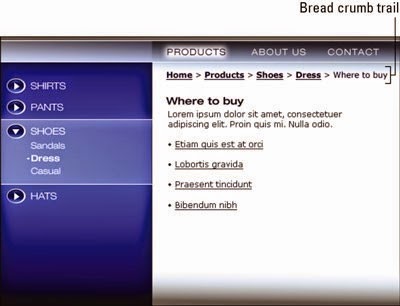
This bread-crumb trail provides a convenient way to retrace your steps in a site.
Bread crumbs are helpful to navigate sites that have navigation that goes more than two levels deep within a section. For example, if you use the section navigation to go down to a page that has even more links on it, you are now diving into a third or fourth level of the section’s hierarchy. It’s just not practical to display third- and fourth-level navigation on the page. So the bread crumbs can simply record your steps and get longer and longer as you dive deeper (hopefully no more than four levels or you’re getting into the catacombs of the site!).

Each bread-crumb link provides a quick way to retrace your steps back up the hierarchy. You don’t have to follow the links in sequence; you can click any link in the trail to jump quickly back to a different level in the hierarchy. The trail also gives you a good idea of where you are in the site. Unlike with a global navigation scheme, however, you cannot jump across to another section; you can only jump back to a level within a section. Think of a bread-crumb system as the browser’s Back button on steroids.

Graphically, the design convention for a bread-crumb interface is to show each previous step as an active text link followed by a character (arrow, colon, or pipe), all in a simple row. The last entry at the end of the trail represents the current page you’re on, so it should not be a link — and it should look different. If it were a link, it would simply reload the page — not the ideal user experience.

الثلاثاء، 27 يناير 2015

This Web App Easily Turns Your Selfies Into 3D Models


Taking a 2D photo and turning it into a 3D model is something that many users getting started in 3D printing are interested in doing. Sometimes a straight-on shot can help you get basic dimensions, but really transitioning it into a 3D model can be very difficult. Now, Smoothie-3D is trying to make this process easier with their free online modeling tool.


Smoothie-3D is a completely browser-based 3D modeling platform that incorporates several features that are often difficult to do in other programs. You can quickly import and manipulate existing 3D objects and perform actions like embedding text. Of course, one of the coolest features of Smoothie-3D is the ability to trace an image into multiple parts, then individually manipulate the dimensions and placement of those parts into a 3D model.
Their demo video of modeling a squirrel is instantly impressive:


The site requires a free registration to use, and I was pleased to discover that the squirrel model was available as a free demo to all new users. I was even more pleased when I opened the model and removed the texture map to reveal that, while not a detailed sculpt, it was a very recognizable model of a squirrel.
Do you frequently run into a 3D modeling problem, and need to find a tool to solve it? Let us know in the comments below.

الأحد، 25 يناير 2015

How to Create Web-Site in Drupal

Drupal is written in PHP and requires a MySQL database, both of which are available with the SiteGroundDrupal hosting services. The Drupal basic installation can be easily turned into many different types of web pages - from simple web blogs to large online communities. A Drupal installation can be turned into a content management system, a blog, a forum, a newsletter system, a picture gallery and more. Here we will explain the use of Drupal as a blog application.

Drupal installation

Please, visit the pages listed below to find detailed instructions how to install Drupal on your website with the help of the Softaculous auto-installation tool or through the web installer.

How to create a blog site with Drupal?

Once you have finished with the installation of Drupal, you should navigate to the web address, where the script is located and you will see the main page. First you should log in with your administrative account or create a new one:

Then you can create content, edit your profile, manage your installation and more from the administer panel:

To start using Drupal as a blog, you should first enable the Blog module from the Modules area. 

Drupal Settings

Go to Structure -> Blocks and add the Recent blog posts block in the preferred location on your web site layout. 

After that you should continue setting the access control for the blogging options in the People section as explained in the Drupal Access Control tutorial. New users for the blogging activity can be added from People -> Add user.

Creating Content

Next you should open the Content area and navigate to Add content -> Blog Entry.

Enter the blog post and save it.
It will be automatically promoted to the front page and a menu entry in the previously chosen location will be visualized.
Once you are done, you can go to your home page. There you will see your post.

Useful links

For more information on how to create different type of websites, check our page on how to make a websitewith SiteGround Website Wizard.

السبت، 24 يناير 2015

Borrowing Winning Web Site Ideas


All good Web sites grow and evolve. If you start with a strong design and pay close attention to some basic rules about interface, navigation, and style, you have a better foundation to build on. The following design ideas can help you create a compelling Web site that grows gracefully.

1) Make it easy
Creating a clear and intuitive navigational system is one of the more important elements in creating a Web site. Nothing is likely to frustrate your visitors more than not being able to find what they're looking for. Make sure that visitors can easily get to all the main sections of your site from every page in the site.
You can best do this by creating a set of links to each of the main sections and placing it at the top or side of every page. If the pages are very long, consider including a navigation bar, or footer, at the bottom of the page as well. Often the navigation bar at the bottom of the page is just a list of text links. The bottom of the page is also an ideal place to include basic contact information. A set of graphical icons can make this navigational element an attractive part of your design. Your goal is to make sure that viewers don't have to use the Back button in their browsers to move around your site.


2) White space is not wasted space
One of the better design features you can add to a page is nothing at all (also known as white space). Understand that white space, in this case, is not always white; it's simply space that you haven't crammed full of text or images. It can be any color, but it's usually most effective if it's the color or pattern of your background. White space gives the eye a rest, something readers need even more often when they're staring at a computer monitor. You can use white space to separate one type of information from another and to focus the viewer's attention where you want it most. Some of the most beautiful and compelling designs on the Web use only a few well-thought-out elements against lots of white space.

3) Design for your audience
No matter how technically sophisticated a Web site is or how great the writing, most people notice the design first. Make sure that you leave plenty of time and budget to develop an appropriate and attractive design for your Web site. The right design is one that best suits your audience — that may or may not mean lots of fancy graphics and animations.

4) Back it up
Make sure you have a system in place to back up your Web site. Always keep a copy of all the files that are on your server in a separate location and update it regularly to make sure you have the latest version of your site backed up at all times. Even the best Internet Service Providers sometimes have technical problems, so you should keep a backup of your site where you have easy access to it and can get it back online quickly if something ever does happen to delete any or all the files you have on the server.
Also keep a backup of your original source files, such as Photoshop images. For example, when you develop images for the Web, you usually start in a program like Photoshop, creating a high-resolution image that may include layers and other elements. Before the image goes on your Web site, those layers get flattened and the image gets compressed or reduced and converted into a GIF or JPEG. If you ever want to go back and alter that image in the future, you'll want the original source file before it was compressed and the layers were flattened. Whether you create your own images or your hire a professional designer, make sure you develop a system for saving all these original elements when they are created.

5) Small and fast
Despite all the promises that unlimited bandwidth was coming soon, the biggest problem on the Internet is still speed. Making sure that your pages download quickly makes your viewers more likely to keep clicking.
If your page designs take a long time to download, here are a few likely reasons and suggestions for how to make them load faster: First, take a look at multimedia elements and consider reducing the size or at least offering users the option to skip large multimedia files, such as Flash introductions. You especially don't want to make users wait too long for the first page of your site. If you suspect that static images are the problem, consider compression methods and use a program such as Fireworks or ImageReady that are designed for optimizing images for the Web. Finally, use Dreamweaver's code cleanup feature to get rid of extra tags that can contribute to a heavier page. To use this, choose Commands --> Clean Up HTML.

6) Follow the Three Clicks Rule
The Three Clicks Rule states that no important piece of information should ever be more than three clicks away from anywhere else on your Web site. The most important information should be even closer at hand. Some information, such as contact information, should never be more than one click away. Make it easy for viewers to find information by creating a site map and a navigation bar — a set of links to all the main sections on your site.

7) Map it out
As your site gets larger, providing easy access to all the information on your Web site may get harder and harder. A great solution is to provide a site map, which is a page that includes links to almost every other page in the site. The site map can become a busy page and usually appears best in outline form. This page should be highly functional — it doesn't matter if it looks pretty. Don't put lots of graphics on this page; it should load quickly and provide easy access to anything that your visitors need.

الاثنين، 19 يناير 2015

Top 5 Web Browsers


All internet browsers need to support all the latest .NET, AJAX, PHP, CSS, HTML languages in order for users to get the best browsing experience. However, you will realize that not all browsers support the latest web languages and that is why some of them are more popular than others.
If you are the kind of person who enjoys internet browsing, chances are that you have at least one internet browser you use. Web browsers or internet browsers allow you to surf the internet. There are currently many internet browsers available. Here is a list of the top five most popular internet browsers for the year 2014. The browsers have not been listed according to popularity.
Internet explorer (IE)
Internet Explorer is Microsoft’s default browser. Even so, it is not very popular as not many people like using it. The reason for this is its lack of additional functions other than internet browsing. What is more, IE is a rather sluggish browser.
Safari Browser
You have probably heard of this wonderful web browser known as Safari. It is Apple’s web browser and is the most used by people with iOS smart devices. It is, however, not that popular among those who use Windows PC’s. Safari gives users a pleasurable browsing experience. If you are an Apple fan, then Safari is a must try browser.
Opera Browser
Opera is a smooth and sleek web browser that provides a minimalist browsing experience. Opera also comes with a variety of features such as cookies, saving caches, keeping browsing history, saving account passwords and multi-tab abilities, among others. It also gives you the ability to delete the saved features. Opera is free to download. It is popular with smartphone users, as it helps save on data. It allows users to view a compressed version of a website.
Mozilla Firefox
Mozilla is one of the most popular web browsers in 2014. Not so long ago, it held the number 1 spot in the list of most popular browsers. One of the many reasons Mozilla grew in popularity is its ability to offer all features, a web browser needs. It can read all web browser languages available and it also gives the users, the best interface.
Firefox also has a variety of productive and useful add-ons, which give users a boost. For example, the add-on known as Grease Monkey is quite useful.
Google Chrome
This web browser is, without a doubt, the most popular web browser in 2014. Its popularity can be attributed to its minimalist interface, amazing features and numerous add-ons. Chrome is a browser from Google and this is also a reason why it is that popular.
Chrome loads up pages fast, thereby giving a great user experience. It also supports modern algorithms and web languages. Chrome comes with a dedicated extensions store that has all the best and useful add-ons the help make it more productive.